Enable LFS
Install & Track
First of all, install lfs for git using following command:
git lfs install
Then add track of large files using lfs:
git lfs track "*.png" "*.jpg" "*.jpeg"
Note that the command above will also update .gitattributes file automatically.
Migrate
Steps above will only handle future large files. To migrate large file to LFS storage for previous commits, we could use git lfs migrate command.
git lfs migrate import --everything --include="*.jpg,*.jpeg,*.png"
- Migrates all files in your Git repository matching the patterns *.jpg, *.jpeg, and *.png to be tracked by Git Large File Storage (LFS).
- The
--everythingflag applies the migration to all commits in the repository history, not just the current state. - The
--includeoption specifies which file types to migrate (in this case, common image formats).
Check & Prune
We could use git lfs ls-files to check the state of LFS tracked files.
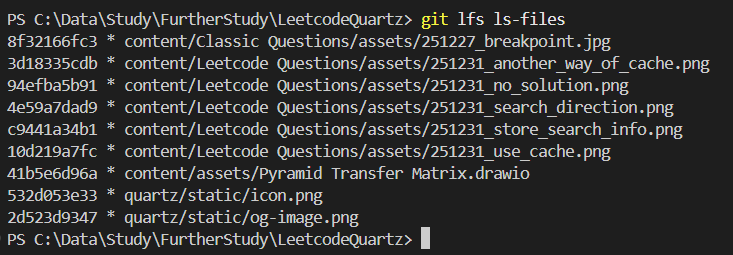
We could use git lfs prune to remove large files stored in local computer that not referenced by any commit and object.
Uncheck Files
Here uncheck means convert some LFS files from actual content back to pointers when we don’t need them anymore.
Git LFS doesn’t provide commands for this feature natively, but there are ways to achieve such effect. Checkout this reddit post for more info.
Disable LFS
We could use git lfs export to remove all files from LFS storage.
git lfs migrate export --include "*"
Use With Gitea Actions
Checkout another post Gitea – Self-Hosted Git & CI/CD Tools for more info about LFS support for actions.